
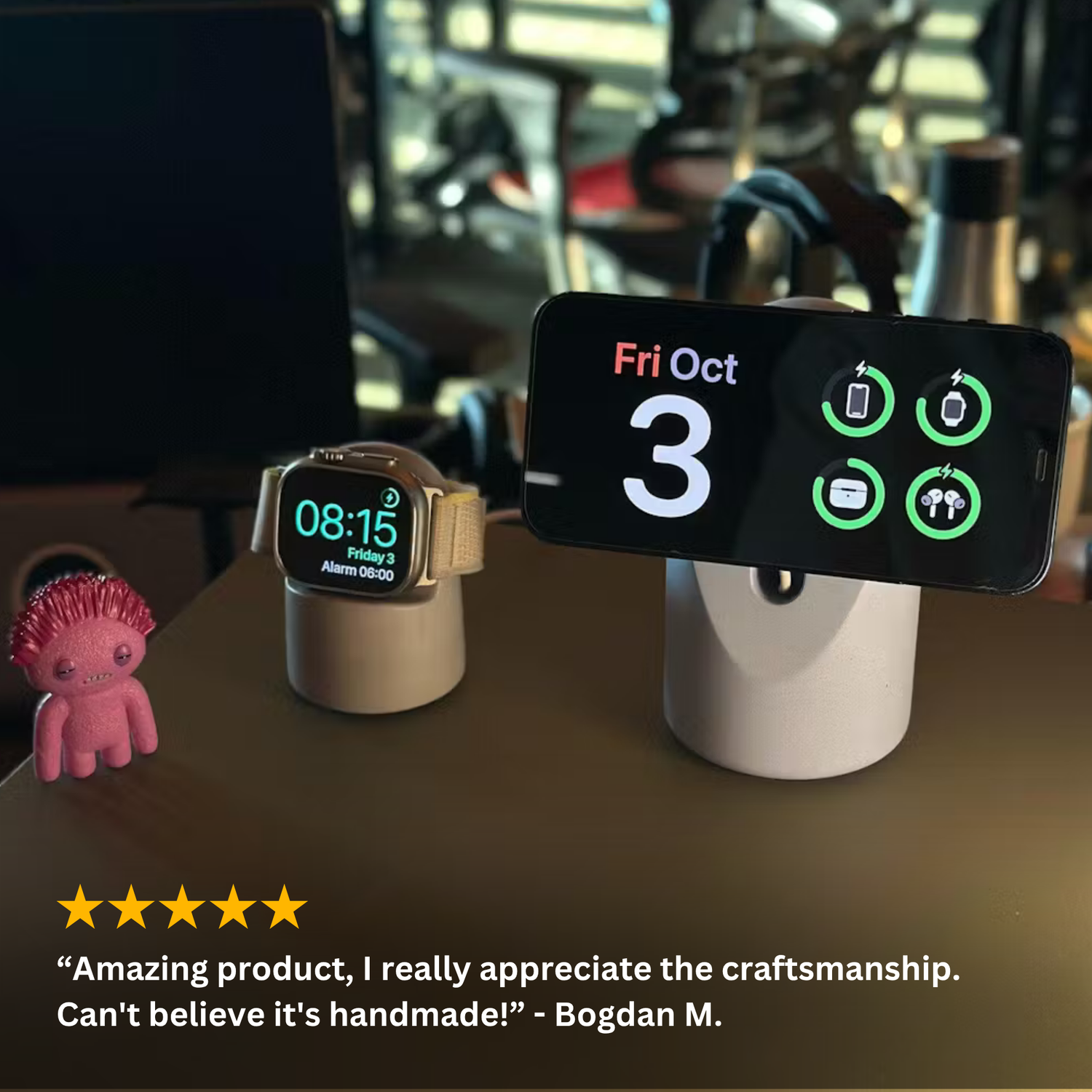
Hidden inside every recent iPhone is a second device: a smart display. Turn your phone sideways on a charger and it becomes a full-screen clock, a rotating photo frame, or a live dashboard of widgets. Apple calls it StandBy Mode, and most iPhone owners have either never triggered it or triggered it once by accident and never figured out how to get it back.
This guide covers everything: how to activate StandBy, how to customize each view, and how to fix it when it refuses to appear.
What Is StandBy Mode?
StandBy Mode arrived with iOS 17 and works on iPhone 11 and later. When your iPhone is charging and positioned in landscape at an angle, the interface transforms into a large-format display designed to be read from across a room: desk, nightstand, or kitchen counter.
Three conditions must all be true:
- The iPhone is charging (wireless or cable)
- The iPhone is in landscape orientation
- The iPhone is stationary and tilted upright, not lying flat
That third condition is why StandBy never appears on flat charging pads. The phone needs an angle, which is exactly why charging stands exist. Apple designed StandBy around a viewing tilt of roughly 15 to 20 degrees; our Heritage stand uses 17°, right in the sweet spot for reading the display while seated at a desk.
How to Turn On StandBy Mode
StandBy is on by default in iOS 17 and later, but check the switch first:
- Open Settings
- Scroll to StandBy
- Toggle StandBy on
Now place your iPhone on a stand in landscape while charging. The screen switches to StandBy automatically within a second or two. On iPhones with an always-on display (iPhone 14 Pro and later Pro models), StandBy stays visible permanently. On other models, tap the screen or nudge the stand to wake it.
The Three StandBy Views
Swipe left and right across the screen to move between StandBy's three faces.
1. Widgets View
Two interactive widget stacks sit side by side. Swipe up or down on each stack to rotate through widgets: calendar, weather, reminders, batteries, stocks, music, smart home controls, and any third-party app that supports StandBy widgets.
To customize: touch and hold either widget stack, unlock with Face ID, then use the plus button to add widgets or the minus to remove them. Enable Smart Rotate and iOS surfaces the widget it thinks you need, like your next meeting ten minutes before it starts.
2. Photos View
Your iPhone becomes a digital photo frame, cycling through featured photos, nature shots, pets, cities, or specific albums you choose. Touch and hold the screen to pick which collections rotate. For a desk or kitchen setup this is easily the most delightful view, and a genuinely good use of a phone that would otherwise sit face-up displaying nothing.
3. Clock View
Full-screen time in five styles: Digital, Analog, World, Solar, and Float, the bubbly oversized numbers that have become StandBy's signature look. Swipe up and down to switch styles, and touch and hold to change accent colors.
Night Mode: StandBy on Your Nightstand
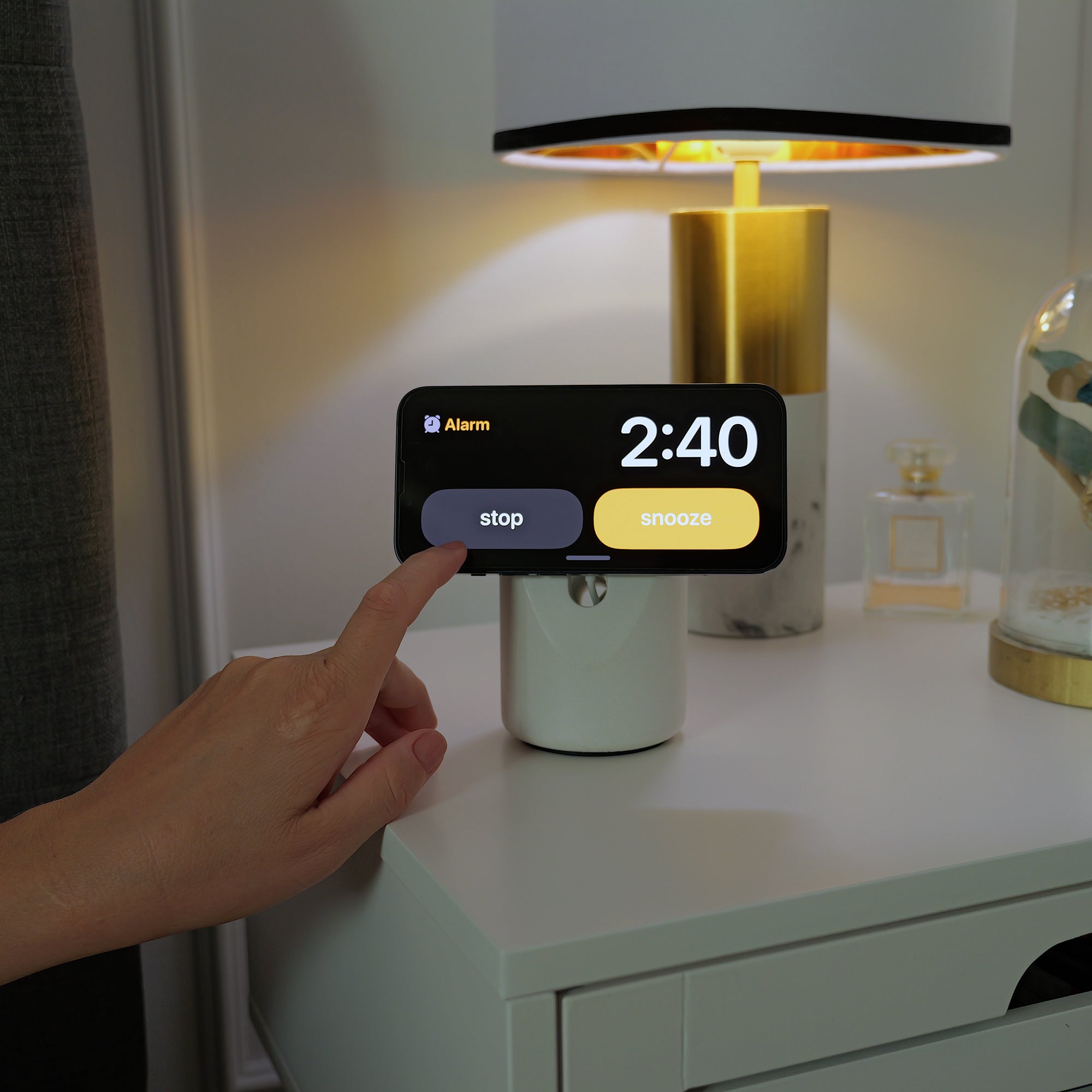
Between roughly sunset and sunrise, or whenever the room is dark, StandBy shifts into Night Mode: the display dims dramatically and turns red-tinted to protect your night vision and avoid lighting up the bedroom.
You can adjust this in Settings, StandBy, Night Mode. If the screen is still too bright for your taste, the always-on display can also be disabled there, so the screen sleeps until you tap it.
Notifications still come through in StandBy, displayed full-screen but with the content hidden until you tap, so a glance from across the room shows who messaged without exposing the message itself. Control this under Settings, StandBy, Show Notifications.
StandBy Mode Not Working? Fix It in Order
Run through these checks:
The phone is lying flat. The most common cause. StandBy requires a tilt. Prop the phone or use a stand.
Portrait instead of landscape. StandBy is landscape only.
Not actually charging. Check for the charging indicator. A loose cable or a misaligned wireless coil means no StandBy. A magnetic MagSafe or Qi2 stand eliminates the alignment problem entirely; if your charging feels unreliable, our guide to slow MagSafe charging covers the nine usual causes.
StandBy toggled off. Settings, StandBy, switch it on.
iOS too old. StandBy needs iOS 17 or later. Update in Settings, General, Software Update.
Screen went dark on non-Pro models. Not a bug. Only always-on display models keep StandBy lit permanently. Tap the screen to wake it.
Low Power Mode. StandBy is disabled while Low Power Mode is active on some configurations. Charge past 80% or toggle Low Power Mode off.
Building the Perfect StandBy Setup
The software is free and already on your phone. The hardware side needs only two things done right:
A stand at the correct angle. Too upright and you're staring at glare; too shallow and the phone thinks it's lying flat. The 15 to 20 degree window is ideal, and stability matters just as much: a light plastic stand slides backward when you tap the screen to snooze an alarm. The Heritage stand solves both with a 17° tilt and a solid hand-poured concrete body heavy enough that the phone detaches with one hand while the stand stays planted.
A charger that keeps the phone attached. Magnetic MagSafe or Qi2 charging means the phone lands in StandBy position every single time, no adjusting. Drop the phone on, StandBy appears, done.
Set it up once on your desk or nightstand and StandBy stops being a hidden feature and becomes the reason your phone finally earns its place on the table instead of disappearing into your pocket.
FAQ
Which iPhones support StandBy Mode? iPhone 11 and later running iOS 17 or newer. Only Pro models with always-on display (iPhone 14 Pro onward) keep StandBy visible without tapping.
Does StandBy Mode drain the battery? No, the opposite: StandBy only runs while charging, so the phone is gaining charge the entire time it's displayed.
Why does StandBy Mode turn red at night? That's Night Mode, which dims and red-shifts the display in dark rooms to avoid disturbing sleep. Adjust it in Settings, StandBy.
Do I need a MagSafe stand for StandBy Mode? Any charging method works, including cable, as long as the phone sits in landscape at an angle. A magnetic stand simply makes the position automatic and repeatable.
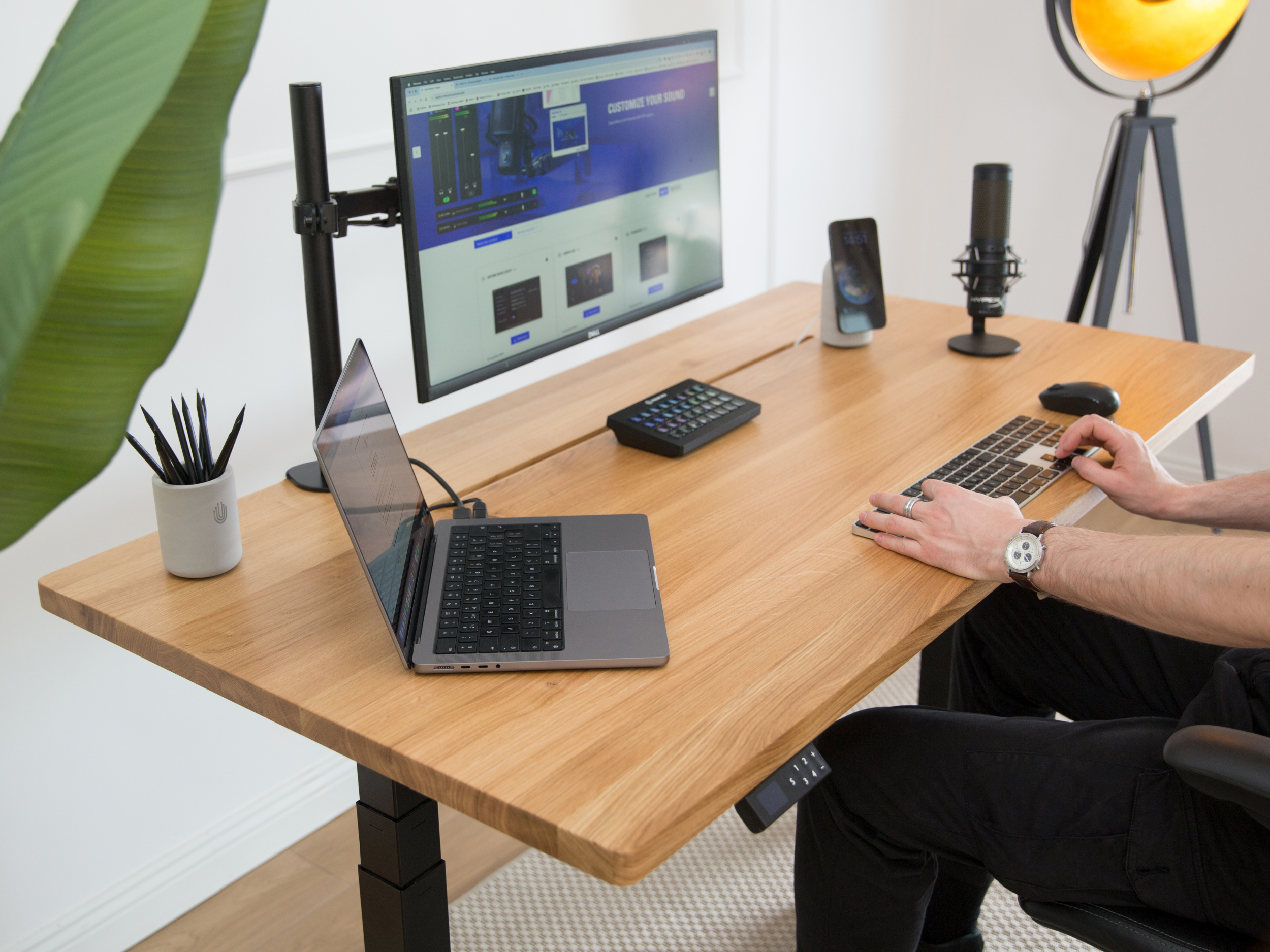
Built for StandBy: the Heritage Concrete MagSafe Stand holds your iPhone in landscape at the ideal 17° angle on a certified 25W charger. Handmade in Europe from solid concrete, free EU shipping, 2-year warranty.

1 comment
zack
StandBy mode is great for visibility! For those of us on Android, I use Taskai to keep my tasks front and center. It’s my go-to for persistent reminders that don’t let me forget my daily goals.
Leave a comment
This site is protected by hCaptcha and the hCaptcha Privacy Policy and Terms of Service apply.