

How to Program an NFC Tag on iPhone and Android (2027 Guide)
Learn how to program an NFC tag on iPhone and Android in 2 minutes with a free app. Step-by-step guide, testing tips and troubleshooting.
Programming an NFC tag sounds technical, but it takes about two minutes and you do not need any special equipment. Your phone is both the programmer and the tester. This step-by-step guide shows you how to write a link to an NFC tag on iPhone and Android, how to test it, how to change it later and how to fix the most common problems.
What you need
- A phone with NFC: any iPhone from the iPhone 7 onward (iOS 13 or later) or almost any modern Android phone.
- A free app: NFC Tools by wakdev is the most popular choice and works on both iPhone and Android.
- A blank or rewritable NFC tag: a sticker, card, key fob or an NFC object like a desk puck.
- The content you want to share: usually a link, such as your website, Instagram, Google review page or menu.
Where is the NFC reader on your phone?
This is the part most people get wrong. The NFC antenna is not everywhere on the phone:
- iPhone: near the top edge, around the camera area. Hold the top of the phone against the tag.
- Android: usually in the middle of the back, but it varies by model. If nothing happens, slowly move the phone around the tag.
How to program an NFC tag on iPhone
- Install NFC Tools from the App Store and open it.
- Tap Write, then Add a record.
- Choose URL / URI and paste your link. Double-check it, including https://.
- Tap OK, then tap Write. The iPhone shows a "Ready to Scan" window.
- Hold the top of your iPhone against the tag until you see a checkmark or a success message.
That is it. From an iPhone XS onward, iPhones read NFC tags in the background, so anyone can now tap the tag with the screen unlocked and a notification opens your link.
How to program an NFC tag on Android
- Turn on NFC: go to Settings, search for "NFC" and switch it on.
- Install NFC Tools from the Google Play Store and open it.
- Go to the Write tab and tap Add a record.
- Choose URL / URI, paste your link and confirm.
- Tap Write and place the back of your phone on the tag until the app confirms it was written.
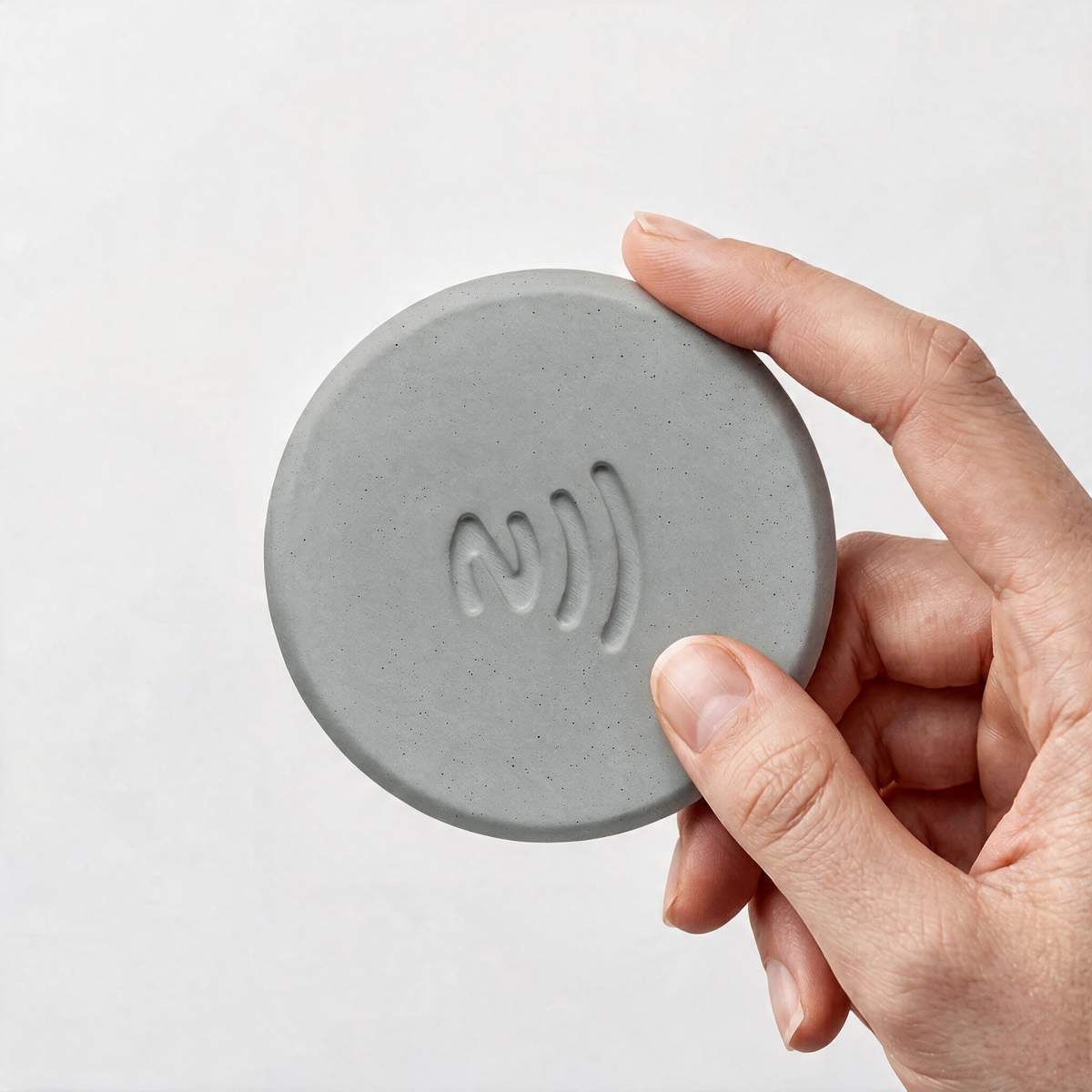
UnityCave
Taply - Concrete Puck With Built-In NFC Chip
Ready to program your first tag? Taply works with the free NFC Tools app in 2 minutes. Hand-poured in Europe, works with iPhone and Android, rewritable any time.
€10
Shop Taply NFC PuckHow to test your NFC tag
Always test on at least one iPhone and one Android phone before you put the tag in front of customers or guests:
- Close the NFC app, unlock the phone and tap the tag.
- A notification or pop-up should appear. Tap it and check that the correct page opens.
- Test the page on mobile. The link might work but the page itself might not be mobile-friendly.
What can you write to an NFC tag?
- A website or landing page
- A Google review link for your business
- A digital business card or LinkedIn profile
- Social media profiles: Instagram, TikTok, Facebook
- A restaurant or café menu
- Wi-Fi login details for guests
- A Spotify playlist or YouTube video
- A phone number, email or SMS ready to send
- Automations: on iPhone, a tag can trigger a Shortcuts automation, for example turning on focus mode or starting a timer. On Android, apps like NFC Tasks or Tasker do the same.
Tip: if you plan to change what the tag does later, write a link to a page you control, like your own website. You can then update the page without touching the tag.
How to reprogram or erase an NFC tag
To change a tag, simply repeat the writing steps with the new link. The new data replaces the old one. To wipe it, open NFC Tools, go to Other and choose Erase tag.
Should you lock your NFC tag?
Locking makes a tag read-only so nobody can overwrite it. It makes sense for tags in public places where strangers could tamper with them. However, locking is permanent: you will never be able to change the link again. If the tag stays on your desk or behind your counter, it is usually better to leave it unlocked.
Troubleshooting: why is my NFC tag not working?
- NFC is off (Android): turn it on in Settings.
- Wrong spot on the phone: iPhones read at the top edge, most Androids in the middle of the back.
- Metal nearby: metal surfaces and some thick metal phone cases block NFC. Try without the case or move the tag away from metal.
- The tag is locked: a locked tag can be read but not rewritten.
- Not enough memory: very long links or big contact cards may not fit. Use a shorter link.
- The phone is locked: most phones only read tags when the screen is unlocked.
An NFC tag that looks good on display
If your tag will sit on a desk, counter or table where people can see it, looks matter. Taply by UnityCave is a hand-poured concrete puck with a built-in NFC chip, available in Concrete, White, Beige, Yellow and Pink. You program it once with NFC Tools exactly as described above, rewrite it any time, and it works with both iPhone and Android with no app needed for the person tapping.
Frequently asked questions
Do I need to pay for an app to program NFC tags?
No. The basic features of NFC Tools, including writing links, are free on both iPhone and Android.
Can the person tapping my tag use any phone?
Any phone with NFC turned on. That covers modern iPhones and most Android phones. They do not need to install anything.
How many times can I rewrite an NFC tag?
Standard NFC chips can usually be rewritten many thousands of times, so in practice you will not run out.
Can I program an NFC tag without an app on iPhone?
The built-in Shortcuts app can use NFC tags as triggers for automations, but to write a link to a tag you need an app like NFC Tools.
UnityCave
Voir les produits →Continuer la lecture

What Is NFC and How Does It Work? A Simple Guide (2027)
What is NFC and how does it work? A simple guide to Near Field Communication, NFC tags, modes, safety and everyday uses for home and business.

25 Clever NFC Tag Ideas for Home, Office and Business
25 practical NFC tag ideas for your home, desk and business: Wi-Fi, routines, Google reviews, menus, networking and more, with placement tips.

NFC Google Review Stand: How to Get More Reviews With One Tap
How an NFC Google review stand works, how to get your review link, set it up in 5 minutes and collect more reviews without breaking Google's rules.